
Getting Started with FlecBase
Your complete walkthrough — from first login to generating your first PDF report. Follow each step in order and you'll have a working system in under 30 minutes.
⏱ Estimated time: 20–30 minutes
This guide walks you through the core FlecBase workflow: registering your account, installing the mobile app, creating records for your people, organisations, and assets, linking them together, attaching files and notes, running a prestart check, and generating a PDF report.
By the end, you'll understand how FlecBase connects your field team with your office — from the yard to the CRM.
Create your account
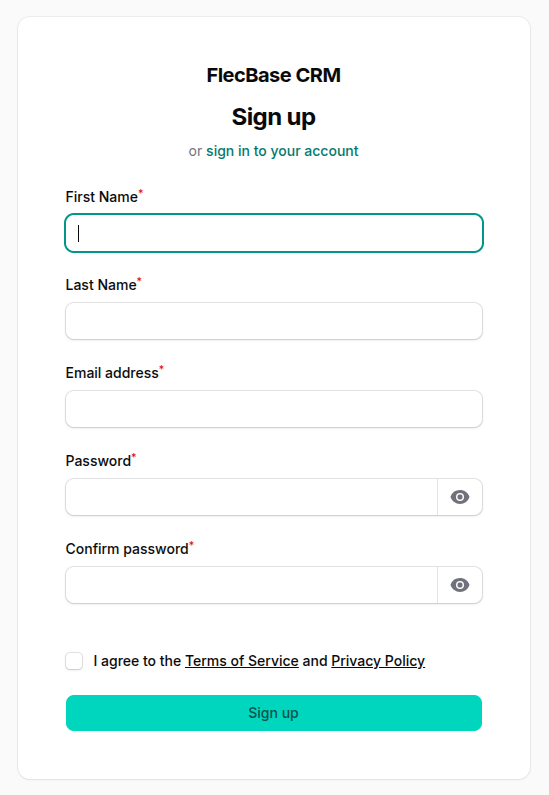
Head to app.flecbase.com and click Sign Up. Fill in your name, email, password, and choose a workspace name — this is the name of your business or team (e.g. "AutoPro Motors" or "Smith Plumbing").
Install the mobile app
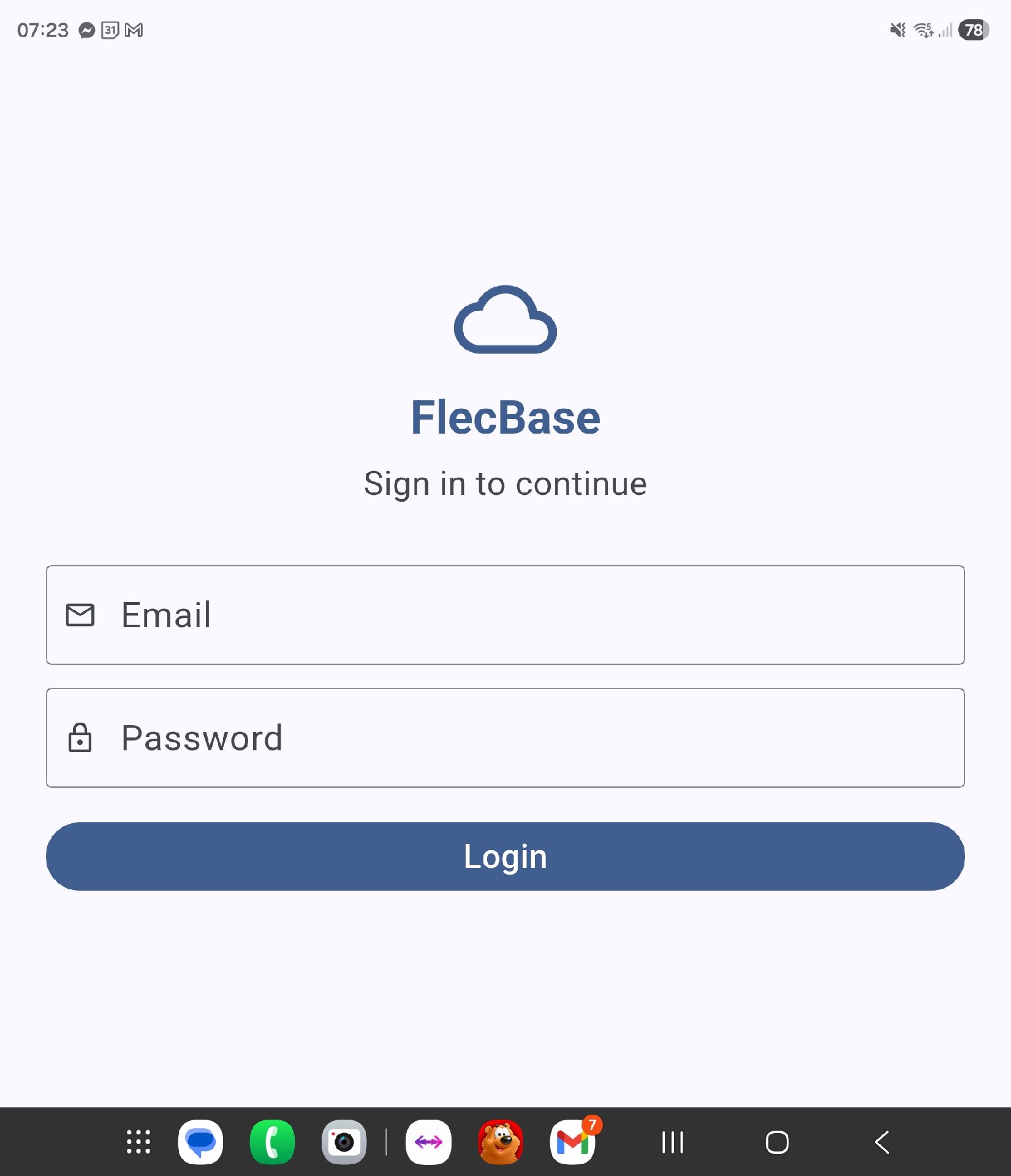
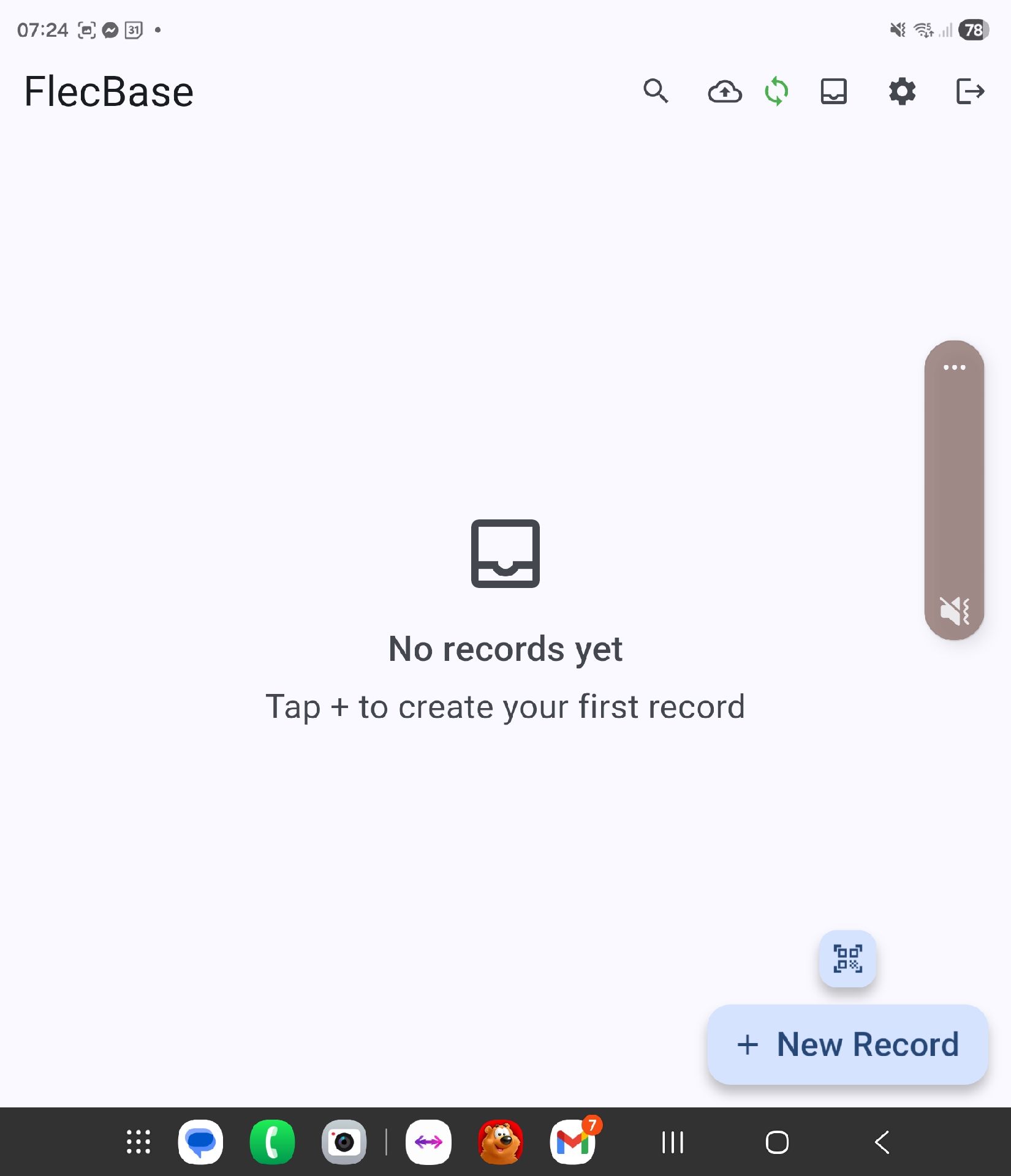
FlecBase is built for the field. Download the Android app so you can capture data offline, take photos, scan QR codes, and sync when you're back online.
Create your first person record
Let's start by adding yourself. Create a Person record using an alternate email address — for example, your personal email — so you can later test the invite feature without conflicting with your admin login.
Create your organisation
Now create a record for your business. Organisations are the top-level container for everything — people work for them, assets belong to them, and work records live underneath them.
Link the person to the organisation
FlecBase uses relationships to connect records. Let's link the person you created (yourself) to your organisation.
Create an asset
Assets are things your organisation uses — vehicles, equipment, buildings, tools. Let's create one and link it to your organisation.
Link the asset to the organisation
If you created the asset as a child record from within the Organisation, it's already linked. If you created it from the dashboard, link it now the same way you linked the person in Step 5.
Upload files and images to all three records
Every record in FlecBase can have files attached — photos, documents, manuals, compliance certificates, anything. Let's add some to each of your three records.
Add notes to all three records
Notes are timestamped text entries attached to records — great for service history, visit logs, communication records, or anything your team needs to know.
Attach a prestart checklist to the asset
Prestarts are Pass/Fail/N/A safety checklists that your field team completes before using an asset. Let's attach one to your asset record.
Complete the prestart on the app
Switch to the mobile app and complete the prestart you just attached. This is what your field team will do every morning before operating equipment.
Download a PDF report
FlecBase can generate a professional PDF report for any record — including its linked records, files, images, notes, and prestart history. Let's generate one for your asset.
Invite a field user
Now let's see how you'd bring a team member on board. FlecBase has two user types: Staff (full CRM + app access) and Field Users (app only — they can capture data in the field but don't access the web CRM).
You can manage team members and change roles at any time from the Team page in the CRM sidebar.