
The Worker Portal (My View)
"My View" — reached at /me — is the self-service portal your workers,
field staff and contractor representatives use. It is where a person sees their own placements,
proves their compliance, completes assigned training (including SCORM e-learning), uploads
their certificates, signs SWMS, and reads the files you have shared with them.
It is the worker-facing companion to the CRM. Everything an administrator sets up in HR / Compliance and Training surfaces here for the individual it concerns — scoped tightly so each person only ever sees their own record (and, for contractor reps, the organisations they represent).
me-portal_1.pngWho it is for
- Workers / field users — people placed on your projects. They may have an app-only ("Field User") login, or no CRM access at all; the portal exists precisely for them.
- Contractor representatives — people who administer one or more contractor organisations. They get an extra My Organisations oversight area (see below).
- Anyone with a workspace login whose email matches a Person record can open it.
Signing in
Workers sign in at the same login as everyone else. FlecBase matches their login email to a Person record in your workspace and opens that person's portal — there is nothing extra to "switch on" per user. If no Person matches their email, they see a friendly "You're not set up yet" message; the fix is to make sure their Person record carries the same email they log in with.
Dashboard
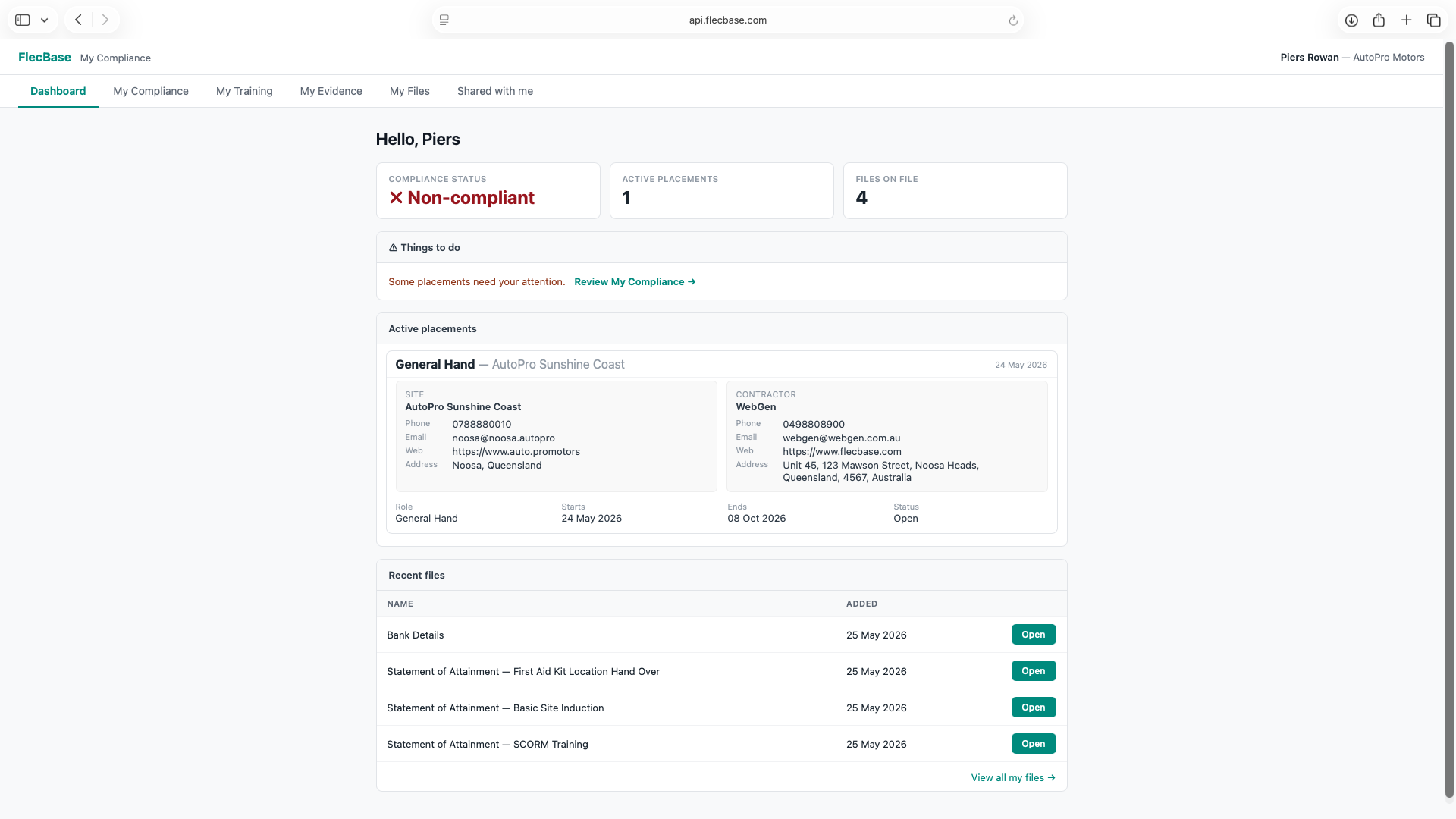
The landing page gives the worker an at-a-glance picture:
- Compliance status — a single green / amber / red badge across all their placements.
- Active placements — the jobs they are currently placed on. Expand any one for the full panel: the site and contractor name, address and contact details, the role, dates and status, and a two-way message thread with the supervisor (newest first).
- Past placements — a read-only history of completed and cancelled placements; still expandable to view detail and message the supervisor (e.g. to collect something left on site).
- Recent files — the latest documents shared with them.
- If anything needs attention, a prompt links straight to My Compliance.
My Compliance
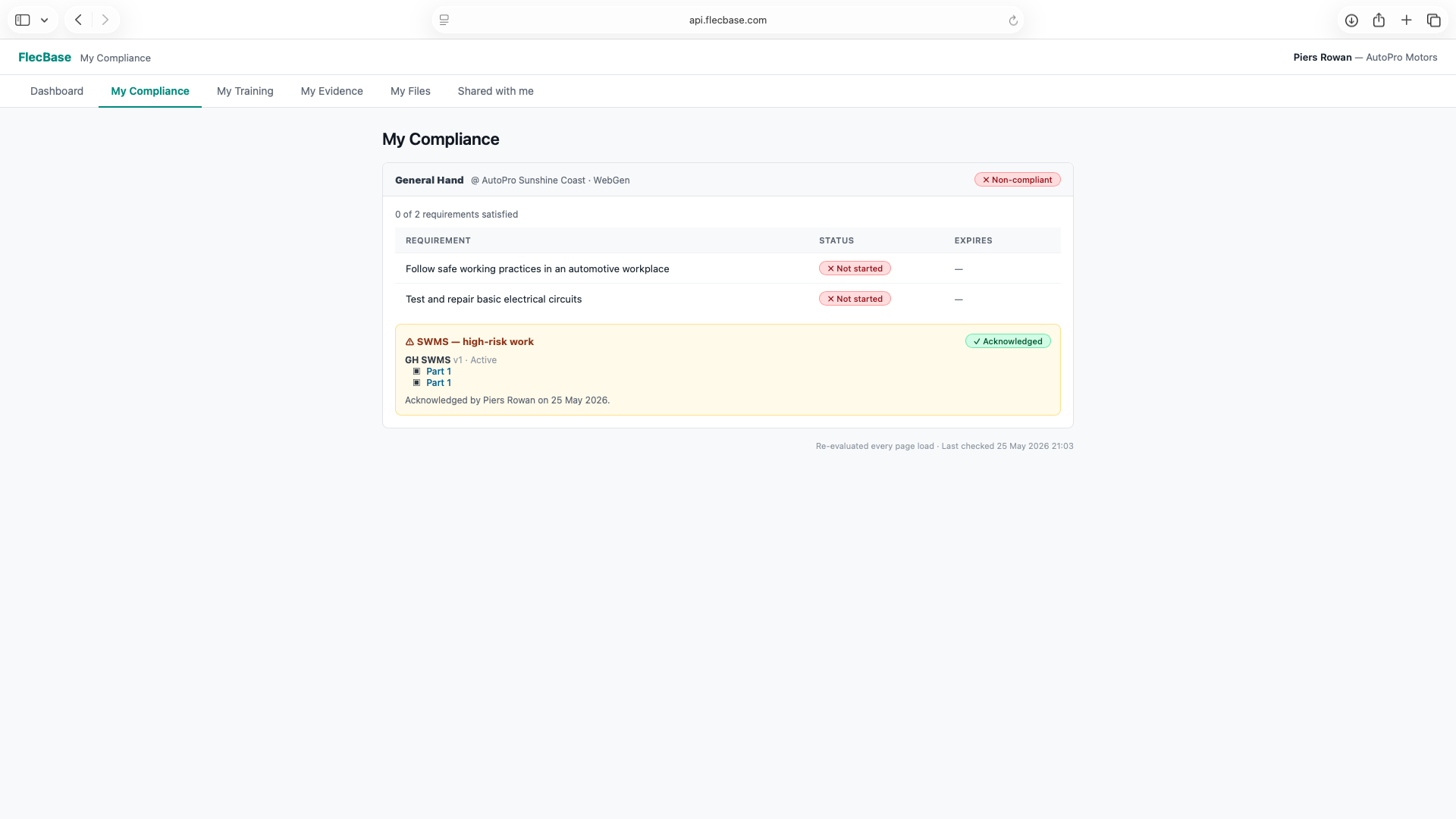
The heart of the portal. For each placement it lists every requirement the role demands and whether the worker has met it:
- Requirements — the evidence, inductions and competencies required, each marked satisfied (✓), attention (⚠) or missing (✗), with the reason and any expiry date. Where a unit has reading material, its documents are linked right on the row so the worker can re-read their induction/material any time — even after completing it.
- Launch / Review — an outstanding induction starts here: e-learning modules launch in-app; read-&-acknowledge inductions open the review-and-acknowledge screen.
- SWMS — if the placement involves high-risk work, the Safe Work Method Statement is shown for the worker to read and sign (see SWMS). The sign button stays disabled until every SWMS document has been opened and ticked.
me-portal_2.pngMy Training
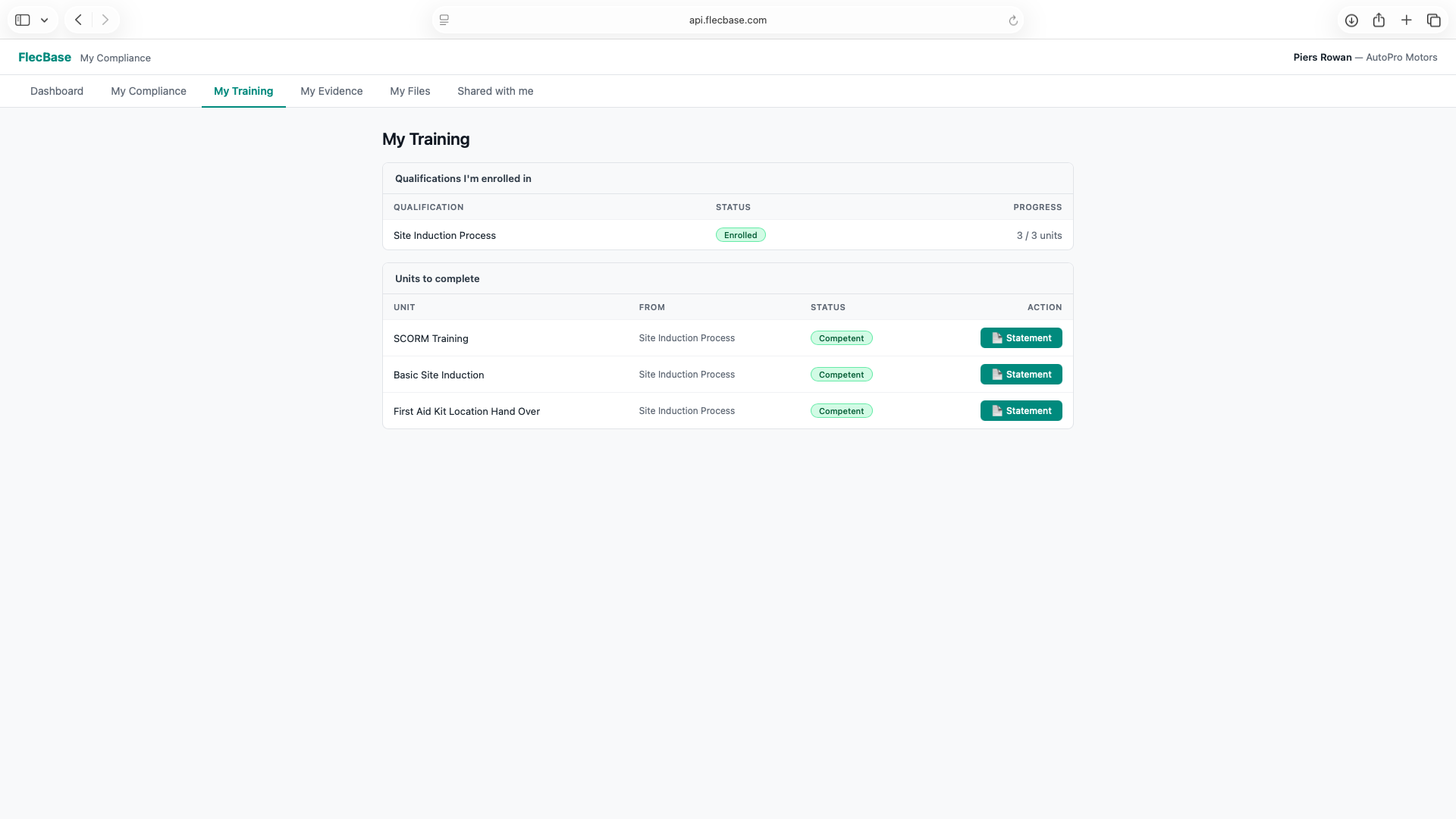
When training has been assigned to a worker, a My Training tab appears. (It is hidden for workers with no assigned training, so the portal stays uncluttered.) It pulls together everything they need to complete — from three sources, each unit tagged with where it came from: their enrolments (a qualification's units, including SCORM), their placement and project inductions, and any directly-assigned units. Enrolled qualifications are also summarised with live progress. Each unit shows its status — Not started, In Progress, Competent, Expired — and the action available:
- SCORM e-learning — units delivered as a SCORM pack show a Launch module button. The worker completes the module in their browser, and on completion FlecBase records the attainment and issues a Statement of Attainment automatically — no admin step needed.
- Read & acknowledge — for policy / read-and-sign units, an "I have read & agree" button marks the unit complete.
- Units delivered in person or externally show their status for reference; an administrator records those completions in the CRM.
So if you set up a unit with SCORM delivery and assign it (directly, or by enrolling the person
in a qualification that contains it), it appears here for the
worker to launch and complete from /me.
me-portal_3.pngMy Evidence
Workers can see and add their own evidence — licences, tickets, insurances, first-aid cards:
- View — every piece of their evidence with its approval status (approved / pending / denied) and expiry; approved documents can be downloaded.
- Upload — a simple form (type, name, issuer, dates, optional document up to 20 MB). New evidence is saved as pending and your administrators are emailed to review it.
- Denied items show the reason, so the worker knows what to fix and re-upload.
This lets workers do the legwork of gathering their own paperwork, with your team simply approving or rejecting — feeding straight into the compliance picture.
My Files
Documents your administrators have chosen to share with the worker — plus the Statements of Attainment generated from completed training — appear here to view and download. Only files marked visible-to-the-worker show; internal documents never do.
Workers can also upload their own files here; they're saved against the worker's person record (visible to them and their admin). This is a personal file store — distinct from My Evidence, which is the approval-tracked compliance documents. Completed training also shows a Statement download right in My Training.
Shared with me
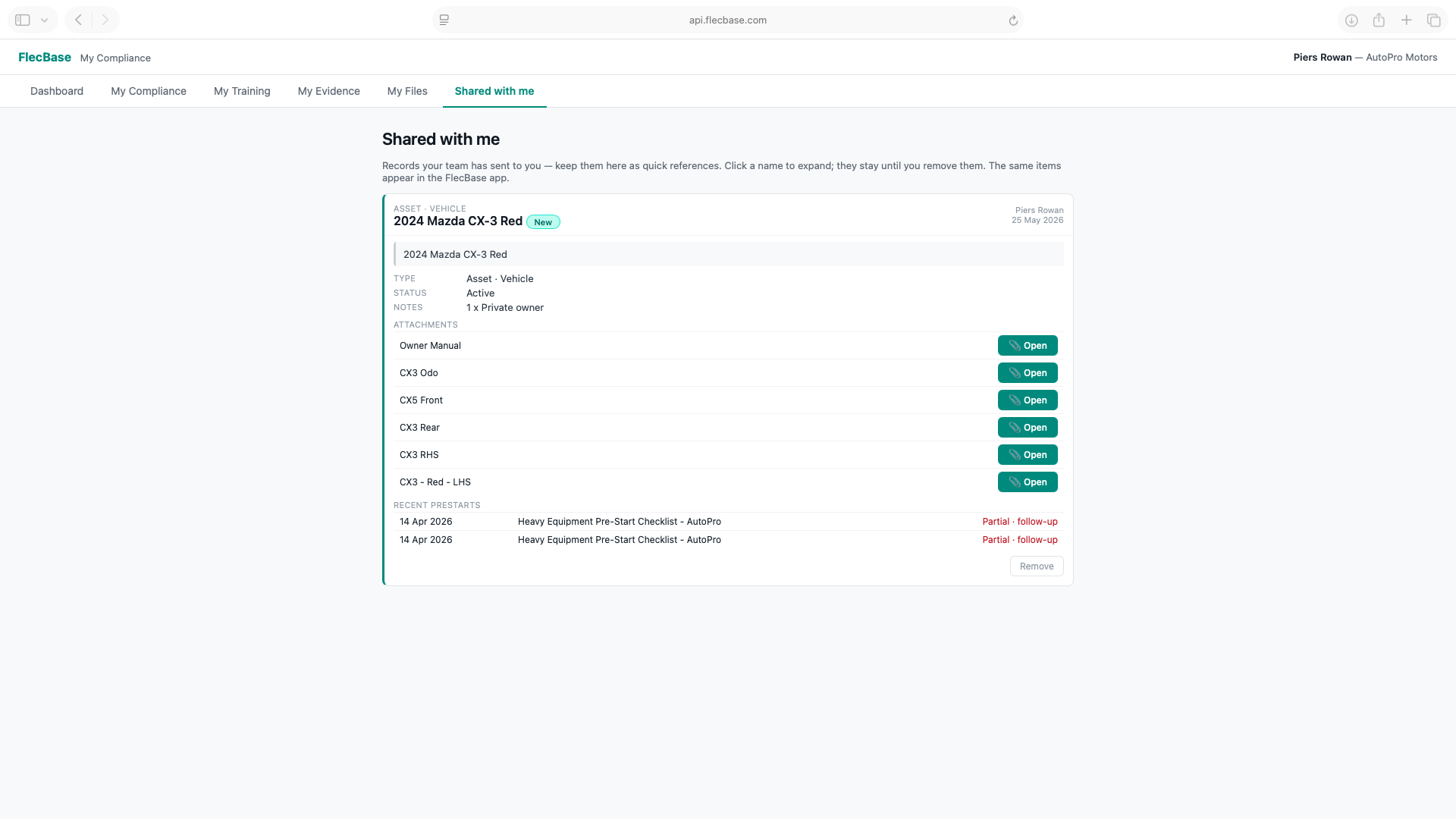
When a colleague uses Send to phone on a record (an asset, a person, an order), it arrives here as well as in the FlecBase app — a Shared with me tab appears (hidden until something has been shared). It works as a collapsible reference list: each item is a single line you click to expand. Expanded, it shows the record's key detail — type and sub-type, status, contact, address, description — plus the sender's message, any attachments to open, and, for assets, their recent prestart history.
Items stay until you remove them (Remove asks for confirmation), so a worker moving between jobs on a site can keep a handy set of references for the assets and people they deal with. Removing here doesn't delete anything — the record stays in the app and the CRM.
Messages sent to the worker (a supervisor's reply, or an app message from the office) also land here, newest first, with a link back to the placement to reply. Every message is saved to the communications log, and can also go out by email or SMS.
me-portal_4.pngSigning a SWMS
When a placement requires a SWMS, My Compliance shows the document and a sign-off: the worker types their name and confirms "I have read & understood this SWMS." The acknowledgement (name, date and the exact SWMS version signed) is recorded and immediately turns the placement green for SWMS on the project compliance matrix.
My Organisations (contractor reps only)
People who represent a contractor organisation get an extra oversight area:
- The organisations they administer, the projects those orgs are engaged on, and a roll-up of every worker placement across them with its compliance status.
- Upload organisation evidence (company insurances, registrations) for review.
- Add a child organisation beneath one they administer.
- Any notices (pinned notes) your team has published to those orgs or their people.
This area is hidden for workers who are not org representatives.
Your privacy
The portal is strictly scoped: a worker only ever sees their own placements, evidence, training and the files explicitly shared with them. Contractor reps additionally see the organisations they represent. Nothing else in your workspace is visible.
For administrators — setting a worker up
- Create the Person with the email they will log in with.
- Invite them — as Staff or an app-only Field User — or let them sign in via your workspace login.
- Place them on a role so their compliance requirements appear.
- Assign training — directly or via a qualification; SCORM units become launchable in My Training.
- Attach any required SWMS to the job so the worker is prompted to sign.
- Share any documents they need on their Person record (mark them visible to the worker).